
This tutorial explains how to install custom indicators on the cTrader platform. Specifically, it guides you through the installation of indicators downloaded from third-party sites. This tutorial does not cover the installation of indicators from the cTrader Store.
This tutorial covers the installation of custom indicators in the desktop cTrader application on Windows. You cannot install custom indicators on mobile apps or the web platform.
cTrader is a fast-developing platform that is constantly evolving and improving. This tutorial provides the most up-to-date guide for the installation of custom indicators on cTrader, whereas many tutorial articles and videos you can find on the internet are outdated due to changes to the platform and its interface.
Overall, you have four options to install a custom indicator on your cTrader platform:
- Opening the indicator file by double-clicking: the easiest and most straightforward option, suitable for the majority of traders.
- Copying the indicator to the cTrader Indicators folder.: in case the previous method does not work.
- Adding the indicator through the Algo application of the cTrader platform: for those who use this app for coding their own indicator, robots, etc.
- Using source files: in case you do not have a compiled indicator file, but have a source file.
They are further described below.
Opening the indicator file
The easiest and most straightforward way to install an indicator is to simply open its file. Navigate to the folder where you have downloaded the indicator. If it is in a zip archive (or any other archive), unzip (unarchive) it. Then simply double-click on the .algo file (or open it in any other way — select it and press Enter, right-click and choose Open from the dropdown menu, etc.). If you did not open cTrader desktop beforehand, it will open automatically when you double-click the .algo file.

Take note that this method will work only if .algo files are associated with your cTrader desktop application. Fortunately, this should happen automatically when you install your cTrader platform.
Once installed, the indicator will appear in the indicator list of your cTrader platform. It will be marked with the New tag.

Also, it can appear in the Recent section of the list.

Both of these apply regardless of the way you have installed the indicator.
Copying the indicator file into the cTrader folder
If, for whatever reason, you are unable or do not want to use the previous method, you can simply copy the indicator file into the cTrader folder.
For that, you need to copy the indicator file (if the indicator you downloaded has several files, you need only the .algo file).

After that, open the cAlgo folder, which is usually located in the Documents or My Documents folder on your PC. Then open the Sources folder located there.

Next, proceed to the Indicators folder.

And finally, paste the indicator file into the Indicators folder.

If you then check the list of indicators in the cTrader platform, your custom indicator should appear there.
Adding indicators through the Algo application
Technically, the cTrader desktop application for Windows consists of four applications. One of them is Algo — the application for creating robots, indicators, and other automated tools. It can also be used by installing custom indicators.
Open the Algo app from the menu on the left-hand side of your cTrader desktop platform.
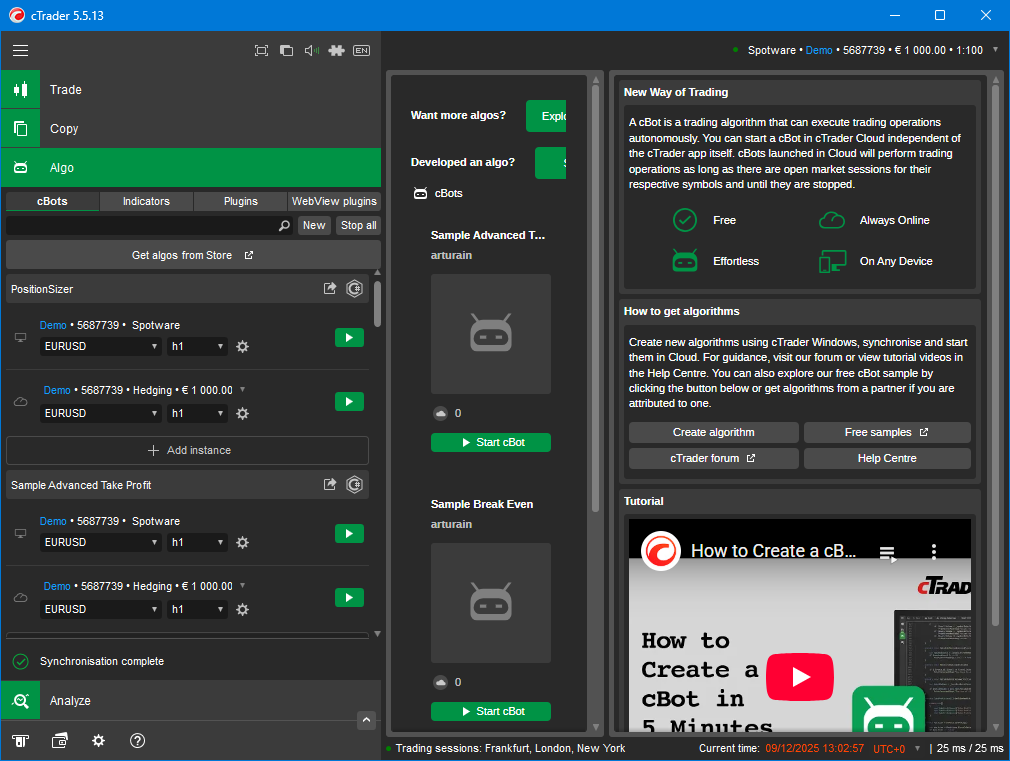
Open the Indicators tab.

Click the New button above the indicator list and to the right of the search bar.

You will then be given the option to create a new algorithm or add an existing one. Select Add an existing algorithm and click Next.

In the next window, you can either Choose a file (and then you will need to navigate to the folder to which you downloaded the indicator file) or drag the indicator file to the window.


Once you select the indicator file by either of those methods, click Add.

You will see the newly installed indicator in the indicator list of the Algo app.

Additionally, after you install an indicator, the cTrader platform will open the Trade app and automatically add the indicator to the chart.
Using source files
While the previous methods were all using .algo files, you can also install indicators using source files, which have the .cs extension.
Navigate to the folder containing the downloaded source file, then open it with any text editor.

Copy the code contained in the file.
Open your cTrader platform and select the Algo app. As in the previous method, go to the Indicators tab and click the New button. But instead of adding an existing indicator, select Build a new algorithm and click Next.

Select Indicator, Name it, and click Next.

Select the C# language and click Next.

Select From scratch and click Create.

The app will open a window with sample code. Delete it and paste the code you copied from the .cs file. Click the Build button.

Wait for the indicator to build. If you did everything correctly, you would see the Build succeeded message in the Build Result window.

After the successful build, the indicator will appear in the indicator list. Also, the Indicator folder will now contain the indicator file with the .algo extension.
Conclusion
You can use four different methods to install a custom indicator on the cTrader desktop platform for Windows. The easiest way is to double-click the indicator file (or open it another way). If .algo files are not associated with the cTrader app in your operating system, you can copy the indicator file directly into the Indicators folder of the cTrader platform, located in the My Documents or Documents folder of your PC. Coders who use the Algo app on the cTrader platform can also use it to add custom indicators. Finally, you can copy the indicator code from the source file into the Algo app.


