




Originally, this guide had been intended as a
You can learn some basic MQL4/MQL5 coding by reading our guides on MQL programming.
One important thing to understand is that it isn't possible to add alerts to indicator without at least some coding. The good thing is that what you will require is so simple that even a 5-year old could do it after reading this post. You have to do three things to add an alert to an indicator:
- Add input parameters for turning alerts on/off and adjusting some alert settings — all entirely optional but it is better to have some easy way of configuring things than to
re-code everything each time your needs shift. - Identify indicator buffers that are used by an indicator and contain the data you want to be alerted about.
- Formulate conditions for alerts to fire up. For example, a classic condition for MACD buy alert could be formulated as: current MACD Signal below current MACD Main and previous MACD Signal above previous MACD Main and both current MACD Signal and MACD Main are below zero. Conditions can be simpler or more complex, but you should already know what you want to be alerted about if you are looking to add alerts to an indicator.
Prerequisites
Before you proceed, make sure that the prerequisites listed below are met:
- You will need an access to the indicator's source code — .mq4 file for MetaTrader 4 and .mq5 file for MetaTrader 5. Sometimes indicators use more than one file for their source code. In such case, you would need .mqh files as well. You will not be able to add alerts to an indicator if you lack its source code. You can ask the indicator's author for the source code if you only have a compiled file (.ex4 or .ex5).
- Although you do not need to have prior coding experience to follow this tutorial, you still need to have some understanding of coding basics, for example: how to compile an indicator or what a variable is.
- You need to pay attention to every step listed in this tutorial. Thoughtless copy/paste will not work here at all.
Input parameters
Theory
You are probably familiar with the different types alerts that exist in MetaTrader:
- Native alert (popup)
- Sound alert
- Email alert
- Push notifications (mobile)
Most of the time, traders want the plain native alerts but it is a good practice to implement all four at once and to give a choice (via input parameters) to enable and disable certain types of alert. You will learn to add four input parameters: EnableNativeAlerts, EnableSoundAlerts, EnableEmailAlerts, EnablePushAlerts.
Another important input parameter is the candle to use for triggering the alert. Normally, you want the alert to be triggered on the close of the candle #1 when the latest candle (#0) has just started forming — that way you get a final and true alert (unless your indicator repaints itself). Sometimes, traders want to receive their alerts as fast as possible, then looking for alert conditions on candle #0 can be a better choice. Of course, the alert may turn out to be false as the indicator values on candle #0 a susceptible to changes with each new tick. The input parameter that controls the number of trigger candle will be called TriggerCandle. It will be equal to 1 by default, but a trader will be able to change it to 0.
If you plan using email alerts, adding an input parameter for an email subject is also a must. EmailAlertSubject can be set to some fixed string or it can be modified by the alert code during
If you plan using push notifications to your phone or other mobile device, you need to enable and configure them in your platform via menu Tools->Options->Notifications.
All types of alerts need some text to display or send. AlertText parameter can contain some preset text, which will also be modified according to the particular alert's parameters.
One additional parameter is useful when using sound alerts — SoundAlertFile. It can be used to set the name of the audio file for the platform to play during alert.
Practice
Find the last line starting with extern (older MT4 indicators) or input (MT5 and newer MT4 indicators) statement. Insert the following code after that line:
input int    TriggerCandle      = 1;
input bool   EnableNativeAlerts = true;
input bool   EnableSoundAlerts  = true;
input bool   EnableEmailAlerts  = true;
input bool   EnablePushAlerts  = true;
input string AlertEmailSubject  = "";
input string AlertText          = "";
input string SoundFileName      = "alert.wav";

datetime LastAlertTime = D'01.01.1970';
int LastAlertDirection = 0;
This code uses empty initial alert text and email subject. They will be filled during alert evaluation.
Identifying indicator buffers
Explanation
Indicator buffers are the vital part of almost any MetaTrader indicator. They contain the data, which is displayed on the chart or is used in calculations. Finding indicator buffers is very easy. Search for SetIndexBuffer call. You will see one or more lines that look like this (in old MT4 indicators):
SetIndexBuffer(N, Buffer_Name);
or like this (in newer MT4 or MT5 indicators):
SetIndexBuffer(N, Buffer_Name, INDICATOR_*);
Where N is the buffer's number (you do not need it for alerts) and Buffer_Name is the buffer's name, which you need to formulate the alert conditions.
Now, the tricky part is to find the right buffers if there are more than one. In MT5 and newer MT4 indicators, you will see this INDICATOR_* parameter in SetIndexBuffer call, which can help determining the right buffers for alert - you will want those with INDICATOR_DATA (they produce the actual display on the chart).
In some cases, determining the right buffer is easy - there might be only one, or it is called appropriately, or you know how the indicator works. In other cases, I would recommend some trial and error work if you do not want to study the code.
Examples
Looking at some real life examples of SetIndexBuffer calls might help you finding the buffer names in the indicators you work on.
Lines 40-41 of the default MACD indicator in MetaTrader 4 show two buffers:
SetIndexBuffer(0,ExtMacdBuffer);
SetIndexBuffer(1,ExtSignalBuffer);
Obviously, ExtMacdBuffer is the main line buffer and ExtSignalBuffer is the signal line buffer.
If you look at the lines 29-31 of the .mq4 source of the CCI Arrows indicator, you will see three buffers there:
SetIndexBuffer(0,dUpCCIBuffer);
SetIndexBuffer(1,dDownCCIBuffer);
SetIndexBuffer(2,dSellBuffer);
Naturally, you would think that dUpCCIBuffer is for Up-arrows and dDownCCIBuffer is for Down-arrows. But what is dSellBuffer? The thing is that if you search the code for it, you will find that it is not used anywhere at all. It means that you can safely ignore it and base all your alerts on the former two buffers.
The MT5 version of the Aroon Up & Down indicator contains the following lines:
SetIndexBuffer(0, AroonUpBuffer, INDICATOR_DATA);
SetIndexBuffer(1, AroonDnBuffer, INDICATOR_DATA);
Both SetIndexBuffer function calls have INDICATOR_DATA parameters, which means that both buffers (AroonUpBuffer and AroonDnBuffer) contain values plotted on the chart. Clearly, AroonUpBuffer is used for calculation of the Up-line and AroonDnBuffer is used for the Down-line.
Lines 46-47 of the MT5 Coppock indicator also show two buffers:
SetIndexBuffer(0, Coppock, INDICATOR_DATA);
SetIndexBuffer(1, ROCSum, INDICATOR_CALCULATIONS);
The INDICATOR_CALCULATIONS parameter tells us that ROCSum is not an indicator buffer used for display but rather a buffer used for intermediate calculations. Coppock is the only buffer that can be used for alerts here - unsurprisingly so because Coppock indicator is represented by a single histogram.
Alert conditions
Where
Now after you have successfully identified the names of the indicator buffers that you plan using in your alerts, it is time to add the actual alert conditions.
All alerts are appended to the end of the indicator's main calculation function. In older MetaTrader 4 indicators, it is called int start(). The alert conditions code should be inserted just above the last return(0); statement inside that function. In newer MT4 and in MT5 indicators, the function is called OnCalculate and its declaration can vary from one indicator to another. You have to insert the alert conditions code just above the last return(rates_total); statement inside that function.
What
The actual conditions will differ depending on the alert type you wish to add to the given indicator. This guide will cover the three most popular cases: signal, level, and cross.
Signal
Signal is a type of alert that is triggered when some indicator buffer assumes some non-zero level. Arrow indicators would use this kind of alert normally. Adding alert to the aforementioned MT4 CCI Arrows indicator would look like this:
if (((TriggerCandle > 0) && (Time[0] > LastAlertTime)) || (TriggerCandle == 0))
{
        string Text;
        // Up Arrow Alert
        if ((dUpCCIBuffer[TriggerCandle] > 0) && ((TriggerCandle > 0) || ((TriggerCandle == 0) && (LastAlertDirection != 1))))
        {
                Text = AlertText + "CCI Arrows: " + Symbol() + " - " + EnumToString((ENUM_TIMEFRAMES)Period()) + " - Up.";
                if (EnableNativeAlerts) Alert(Text);
                if (EnableEmailAlerts) SendMail(AlertEmailSubject + "CCI Arrows Alert", Text);
                if (EnableSoundAlerts) PlaySound(SoundFileName);
                if (EnablePushAlerts) SendNotification(Text);
                LastAlertTime = Time[0];
                LastAlertDirection = 1;
        }
        // Down Arrow Alert
        if ((dDownCCIBuffer[TriggerCandle] > 0) && ((TriggerCandle > 0) || ((TriggerCandle == 0) && (LastAlertDirection != -1))))
        {
                Text = AlertText + "CCI Arrows: " + Symbol() + " - " + EnumToString((ENUM_TIMEFRAMES)Period()) + " - Down.";
                if (EnableNativeAlerts) Alert(Text);
                if (EnableEmailAlerts) SendMail(AlertEmailSubject + "CCI Arrows Alert", Text);
                if (EnableSoundAlerts) PlaySound(SoundFileName);
                if (EnablePushAlerts) SendNotification(Text);
                LastAlertTime = Time[0];
                LastAlertDirection = -1;
        }
}
The code should be added just before the latest return(0); statement inside the start() function.
Adding the same alerts to MT5 version of CCI Arrows is only marginally different:
if (((TriggerCandle > 0) && (time[rates_total - 1] > LastAlertTime)) || (TriggerCandle == 0))
{
        string Text;
        // Up Arrow Alert
        if ((dUpCCIBuffer[rates_total - 1 - TriggerCandle] > 0) && ((TriggerCandle > 0) || ((TriggerCandle == 0) && (LastAlertDirection != 1))))
        {
                Text = AlertText + "CCI Arrows: " + Symbol() + " - " + EnumToString(Period()) + " - Up.";
                if (EnableNativeAlerts) Alert(Text);
                if (EnableEmailAlerts) SendMail(AlertEmailSubject + "CCI Arrows Alert", Text);
                if (EnableSoundAlerts) PlaySound(SoundFileName);
                if (EnablePushAlerts) SendNotification(Text);
                LastAlertTime = time[rates_total - 1];
                LastAlertDirection = 1;
        }
        // Down Arrow Alert
        if ((dDownCCIBuffer[rates_total - 1 - TriggerCandle] > 0) && ((TriggerCandle > 0) || ((TriggerCandle == 0) && (LastAlertDirection != -1))))
        {
                Text = AlertText + "CCI Arrows: " + Symbol() + " - " + EnumToString(Period()) + " - Down.";
                if (EnableNativeAlerts) Alert(Text);
                if (EnableEmailAlerts) SendMail(AlertEmailSubject + "CCI Arrows Alert", Text);
                if (EnableSoundAlerts) PlaySound(SoundFileName);
                if (EnablePushAlerts) SendNotification(Text);
                LastAlertTime = time[rates_total - 1];
                LastAlertDirection = -1;
        }
}
That code should be inserted just above the latest return(rates_total); statement inside the OnCalculate function. It assumes that the time and buffer arrays are not set as series. If they are, you would need to substitute TriggerCandle for rates_total - 1 - TriggerCandle and time[0] for time[rates_total - 1].
Level
Level alerts are also very simple. If an indicator reaches a certain value (from above or from below), the alert is triggered. Single-line indicators shown in separate window use this kind of alert normally. Here is how the alert conditions for crossing of zero level would look in the MT4 version of Coppock indicator:
if (((TriggerCandle > 0) && (Time[0] > LastAlertTime)) || (TriggerCandle == 0))
{
        string Text;
        // Above Zero Alert
        if (((Coppock[TriggerCandle] > 0) && (Coppock[TriggerCandle + 1] <= 0)) && ((TriggerCandle > 0) || ((TriggerCandle == 0) && (LastAlertDirection != 1))))
        {
                Text = AlertText + "Coppock: " + Symbol() + " - " + EnumToString((ENUM_TIMEFRAMES)Period()) + " - Above Zero.";
                if (EnableNativeAlerts) Alert(Text);
                if (EnableEmailAlerts) SendMail(AlertEmailSubject + "Coppock Alert", Text);
                if (EnableSoundAlerts) PlaySound(SoundFileName);
                if (EnablePushAlerts) SendNotification(Text);
                LastAlertTime = Time[0];
                LastAlertDirection = 1;
        }
        // Below Zero Alert
        if (((Coppock[TriggerCandle] < 0) && (Coppock[TriggerCandle + 1] >= 0)) && ((TriggerCandle > 0) || ((TriggerCandle == 0) && (LastAlertDirection != -1))))
        {
                Text = AlertText + "Coppock: " + Symbol() + " - " + EnumToString((ENUM_TIMEFRAMES)Period()) + " - Below Zero.";
                if (EnableNativeAlerts) Alert(Text);
                if (EnableEmailAlerts) SendMail(AlertEmailSubject + "Coppock Alert", Text);
                if (EnableSoundAlerts) PlaySound(SoundFileName);
                if (EnablePushAlerts) SendNotification(Text);
                LastAlertTime = Time[0];
                LastAlertDirection = -1;
        }
}
The same for the MT5 version would look like this:
if (((TriggerCandle > 0) && (time[rates_total - 1] > LastAlertTime)) || (TriggerCandle == 0))
{
        string Text;
        // Above Zero Alert
        if (((Coppock[rates_total - 1 - TriggerCandle] > 0) && (Coppock[rates_total - 2 - TriggerCandle] <= 0)) && ((TriggerCandle > 0) || ((TriggerCandle == 0) && (LastAlertDirection != 1))))
        {
                Text = AlertText + "Coppock: " + Symbol() + " - " + EnumToString(Period()) + " - Above Zero.";
                if (EnableNativeAlerts) Alert(Text);
                if (EnableEmailAlerts) SendMail(AlertEmailSubject + "Coppock Alert", Text);
                if (EnableSoundAlerts) PlaySound(SoundFileName);
                if (EnablePushAlerts) SendNotification(Text);
                LastAlertTime = time[rates_total - 1];
                LastAlertDirection = 1;
        }
        // Below Zero Alert
        if (((Coppock[rates_total - 1 - TriggerCandle] < 0) && (Coppock[rates_total - 2 - TriggerCandle] >= 0)) && ((TriggerCandle > 0) || ((TriggerCandle == 0) && (LastAlertDirection != -1))))
        {
                Text = AlertText + "Coppock: " + Symbol() + " - " + EnumToString(Period()) + " - Below Zero.";
                if (EnableNativeAlerts) Alert(Text);
                if (EnableEmailAlerts) SendMail(AlertEmailSubject + "Coppock Alert", Text);
                if (EnableSoundAlerts) PlaySound(SoundFileName);
                if (EnablePushAlerts) SendNotification(Text);
                LastAlertTime = time[rates_total - 1];
                LastAlertDirection = -1;
        }
}
As is the case with the previously discussed signal alert for MT5, you would need to substitute TriggerCandle for rates_total - 1 - TriggerCandle and time[0] for time[rates_total - 1] if the indicator sets its buffers as series. Also, rates_total - 2 - TriggerCandle would have to be changed to TriggerCandle + 1.
Cross
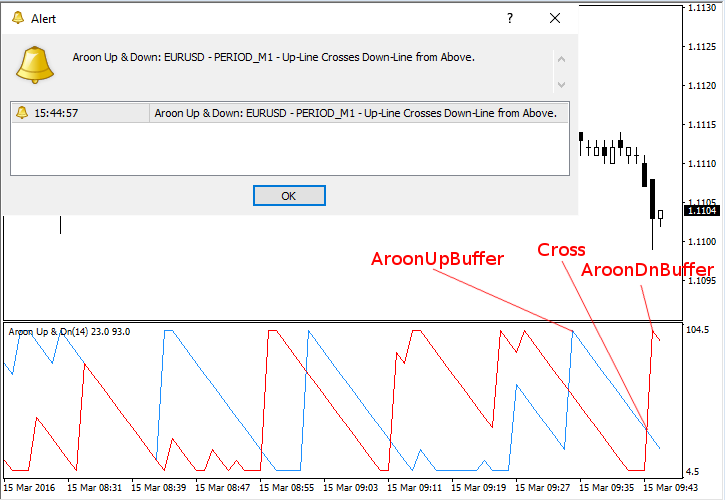
Cross alerts are more complex than the previous two types. They are triggered when some indicator buffer crosses the price line or when two lines of an indicator cross each other, or when several lines cross each other. Let's look at the cross alert implementation for MT4 Aroon Up & Down indicator. We will look for the Up-line crossing the Down-line from below and from above as two distinct alerts:
if (((TriggerCandle > 0) && (Time[0] > LastAlertTime)) || (TriggerCandle == 0))
{
        string Text;
        // Up-Line Crosses Down-Line from Below
        if (((AroonUpBuffer[TriggerCandle] > AroonDnBuffer[TriggerCandle]) && (AroonUpBuffer[TriggerCandle + 1] <= AroonDnBuffer[TriggerCandle + 1])) && ((TriggerCandle > 0) || ((TriggerCandle == 0) && (LastAlertDirection != 1))))
        {
                Text = AlertText + "Aroon Up & Down: " + Symbol() + " - " + EnumToString((ENUM_TIMEFRAMES)Period()) + " - Up-Line Crosses Down-Line from Below.";
                if (EnableNativeAlerts) Alert(Text);
                if (EnableEmailAlerts) SendMail(AlertEmailSubject + "Aroon Up & Down Alert", Text);
                if (EnableSoundAlerts) PlaySound(SoundFileName);
                if (EnablePushAlerts) SendNotification(Text);
                LastAlertTime = Time[0];
                LastAlertDirection = 1;
        }
        // Up-Line Crosses Down-Line from Above
        if (((AroonUpBuffer[TriggerCandle] < AroonDnBuffer[TriggerCandle]) && (AroonUpBuffer[TriggerCandle + 1] >= AroonDnBuffer[TriggerCandle + 1])) && ((TriggerCandle > 0) || ((TriggerCandle == 0) && (LastAlertDirection != -1))))
        {
                Text = AlertText + "Aroon Up & Down: " + Symbol() + " - " + EnumToString((ENUM_TIMEFRAMES)Period()) + " - Up-Line Crosses Down-Line from Above.";
                if (EnableNativeAlerts) Alert(Text);
                if (EnableEmailAlerts) SendMail(AlertEmailSubject + "Aroon Up & Down Alert", Text);
                if (EnableSoundAlerts) PlaySound(SoundFileName);
                if (EnablePushAlerts) SendNotification(Text);
                LastAlertTime = Time[0];
                LastAlertDirection = -1;
        }
}
The same code for MT5 Aroon Up & Down looks like this:
if (((TriggerCandle > 0) && (time[rates_total - 1] > LastAlertTime)) || (TriggerCandle == 0))
{
        string Text;
        // Up-Line Crosses Down-Line from Below
        if (((AroonUpBuffer[rates_total - 1 - TriggerCandle] > AroonDnBuffer[rates_total - 1 - TriggerCandle]) && (AroonUpBuffer[rates_total - 2 - TriggerCandle] <= AroonDnBuffer[rates_total - 2 - TriggerCandle])) && ((TriggerCandle > 0) || ((TriggerCandle == 0) && (LastAlertDirection != 1))))
        {
                Text = AlertText + "Aroon Up & Down: " + Symbol() + " - " + EnumToString(Period()) + " - Up-Line Crosses Down-Line from Below.";
                if (EnableNativeAlerts) Alert(Text);
                if (EnableEmailAlerts) SendMail(AlertEmailSubject + "Aroon Up & Down Alert", Text);
                if (EnableSoundAlerts) PlaySound(SoundFileName);
                if (EnablePushAlerts) SendNotification(Text);
                LastAlertTime = time[rates_total - 1];
                LastAlertDirection = 1;
        }
        // Up-Line Crosses Down-Line from Above
        if (((AroonUpBuffer[rates_total - 1 - TriggerCandle] < AroonDnBuffer[rates_total - 1 - TriggerCandle]) && (AroonUpBuffer[rates_total - 2 - TriggerCandle] >= AroonDnBuffer[rates_total - 2 - TriggerCandle])) && ((TriggerCandle > 0) || ((TriggerCandle == 0) && (LastAlertDirection != -1))))
        {
                Text = AlertText + "Aroon Up & Down: " + Symbol() + " - " + EnumToString(Period()) + " - Up-Line Crosses Down-Line from Above.";
                if (EnableNativeAlerts) Alert(Text);
                if (EnableEmailAlerts) SendMail(AlertEmailSubject + "Aroon Up & Down Alert", Text);
                if (EnableSoundAlerts) PlaySound(SoundFileName);
                if (EnablePushAlerts) SendNotification(Text);
                LastAlertTime = time[rates_total - 1];
                LastAlertDirection = -1;
        }
}
Same as before, substitute TriggerCandle for rates_total - 1 - TriggerCandle and time[0] for time[rates_total - 1] if the indicator uses buffers that are set as series. Again, rates_total - 2 - TriggerCandle would have to be changed to TriggerCandle + 1 in that case too.
Let's illustrate the alert generated with these conditions with this screenshot:
Complex
Of course, the variety of alerts is not limited by the three types described above. Some alerts can have multiple dependencies (e.g. one line crossing the price while two other lines cross each other), other alerts might depend on time, volume, additional calculations, or a combination of various factors. It is even possible to add alerts to indicators that do not use buffers or plot anything on chart.
Such cases are not covered by this DIY guide. Some basic cases can be easily derived from the code snippets offered above while difficult cases are nontrivial ones and demand special approach and extra attention. However, you will certainly learn to add such complex alerts after some practice with the elementary ones.
Summary
In the end, I would like to summarize the
- Add the predefined input parameters just below the latest
externorinputstatement in the indicator's source code. - Identify the buffer names that represent the indicator's plot on chart.
- Insert the appropriate alert conditions code just above the latest
return(0);insidestart()function orreturn(rates_total);insideOnCalculatefunction. - Replace the buffer names with those that you identified in the second step.
Frequently asked questions
How do I include the chart's timeframe in the alert's text?
You can do that by appending EnumToString(Period()) to your alert text. Like this:
if (EnableEmailAlerts) SendMail(AlertEmailSubject + "Aroon Up & Down Alert " + EnumToString(Period()), Text);
How do I add alerts to an indicator that changes colors (e.g., a colored MA)?
If it is an MT5 indicator, then most likely the indicator plot is of DRAW_COLOR_LINE type and there is a separate buffer for the color index of the plot (marked with INDICATOR_COLOR_INDEX). You can check that buffer in conditions for alerts. It contains color numbers, so you can issue alerts, for example, if the value was 0 at previous candle and is 1 at the current candle or something like that, depending on the indicator's logic.
If it is an MT4 indicator, then there is a separate indicator buffer for each color of the MA and you just check if a given buffer is non-zero.
I am trying to add an alert to an indicator when it reaches a particular level, but that level must be variable — I want to be able to change its value. How do I do that?
That variable name would have to be declared as an input parameter at the top of the code and then used in indicator level comparison (see examples for Levels above).
I understand your steps, but how do I access the code on the indicator so as to add the alerts?
Right-click the indicator in the Navigator panel of your platform and select Modify:
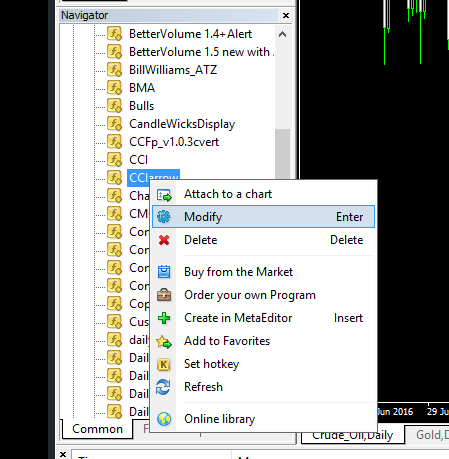
If you there is a source code file available for that indicator in your platform, it will open it. Otherwise, you have only an executable (.ex4 or .ex5) and you have to ask the author of the indicator for the source code file (.mq4 or .mq5).
How do I change alert sounds in my indicator?
For PlaySound() to work with your custom .wav file, the file has to be located in the /Sounds/ subfolder of your platform’s program folder (not data folder) — it is usually under C:\Program Files (x86)\
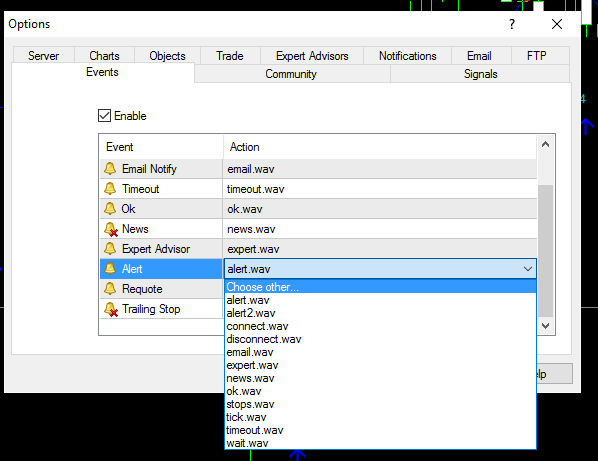
To change what sound is used when the Alert() function is called, go to Tools->Options->Events and change the sound file near Alert:
My alert code executes only once or doesn't execute at all even though my conditions are correct, why?
Make sure you are inserting your alert code inside the OnCalculate() function (start() in older versions of MT4) and not inside OnInit(), OnDeinit(), or any other function.
You can also explore the code of our open-source alert indicators to learn adding your own alerts.
Troubleshooting
If you are trying to add alerts to an MT5 indicator and it doesn't seem to be working, please check whether the source code uses ArrayAsSeries function on the indicator or time buffers. If it does, see the paragraph below MQL5 example snippets for instructions on how to modify the alert code.
For email and push-notification alerts to work, your MetaTrader platform has to be properly configured beforehand.
If you want a professionally coded alert indicator created specifically according to your needs, please refer to our custom coding page.
If you still have some general question about adding alerts to custom MetaTrader indicators, if you want to share your own tips for doing it, or if you want help with adding alerts to a specific indicator, please post about it in the forum.


