




Time Line Auto Close (or TLAC) is a free expert advisor for MetaTrader 4 and MetaTrader 5 platforms that allows you to set a timer or expiry time in the form of a vertical line, so that open positions or pending orders would be closed at your desired time. If you want to have a tool that will close your trades at a given time, then Time Line Auto Close EA for MT4 is what you are looking for.
What is Time Line Auto Close EA?
Time Line Auto Close (TLAC) is an expert advisor designed to help you manage your orders in MetaTrader trading platform. TLAC works equally well in MT4 and in MT5.
Assume that you want to receive a notification before an event, or you want your orders closed before the release of an important news. With Time Line Auto Close, you can set timers that will close some or all of your orders.
This expert advisor can be your MetaTrader "alarm clock" and also your "order timer" depending on whether you only want to receive notifications or actually close your orders.
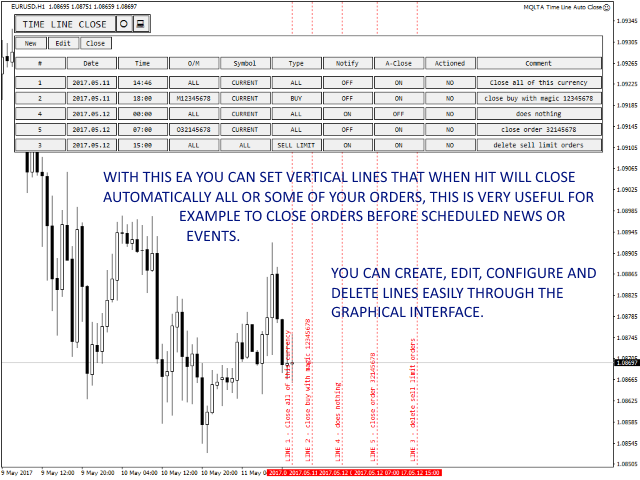
Timers are represented by vertical lines on the chart, so they are easy to spot and handle. A handy table will also list your timers, so that you can identify them and change their options easily.
Features of Time Line Auto Close EA
Time Line Auto Close have quite a few options and components, some of them are:
- Graphical representation
- Filtering options
- Notifications
- Automatic close
- Custom comments
- Persistence
Graphical representation
Time points are presented as vertical lines on the chart to be easily recognized. A table that appears in the top-left corner of the chart but is easily draggable will list all the timers with relevant options, so you can set the parameters with just a few clicks.
Filtering options
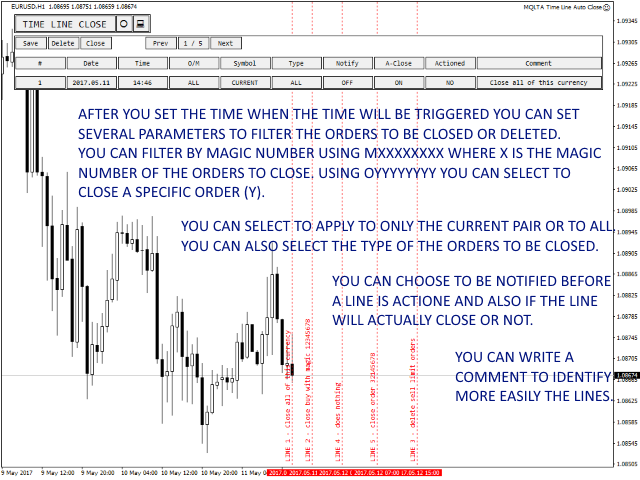
You can filter the orders affected by the timer by type (direction), magic number, and order number. Basically, you can set to apply a timer to a specific order or to orders matching a list of your criteria.
Notifications
You can be notified of the timer events via on-screen alerts, sound-only alerts, email messages, and mobile push-notifications.

Automatic close
If receiving a notification is not enough for you, you can choose to set the timer to close the matching orders automatically. This is useful when you want to make sure you don't have open orders before the release of some important trading news.
Custom comments
You can specify a custom commentary for each timer to know why it was set up and to have a sort of description when receiving a notification from it.
Persistence
Your lines and options will be retained when switching the chart's timeframe or currency pair. When closing the platform, the settings are written into a file and then loaded from it when you launch MetaTrader again. This ensures that setting up complex systems of alerts and closing times will not be in vain if you accidentally close the platform or switch timeframes.
Input parameters
You will have access to the following input parameters in the MetaTrader 4 version of this expert advisor:

The set of parameters for the MT5 version is somewhat different:

Please note that the input parameters provide only starting values in most cases. The options you set via the panel's interface during runtime take precedence over those set via input parameters.
Download (ver. 1.02, 2026-05-04)
You can download the expert advisor using the link below and install it by following the presented instructions.
MT4 Time Line Auto Close EA installation
To install the EA in MT4, please follow the instructions below:
- Download the expert advisor archive file.
- Open the MetaTrader 4 data folder (via File→Open Data Folder).
- Open the MQL4 Folder.
- Copy all the folders from the archive directly to the MQL4 folder.
- Restart MetaTrader 4 or refresh the expert advisors list by right-clicking the Navigator subwindow of the platform and choosing Refresh.
Or you can read a more detailed instruction on how to perform the installation.
MT5 Time Line Auto Close EA installation
To install the EA in MT5, please follow the instructions below:
- Download the expert advisor archive file.
- Open the MetaTrader 5 data folder (via File→Open Data Folder).
- Open the MQL5 Folder.
- Copy all the folders from the archive directly to the MQL5 folder.
- Restart MetaTrader 5 or refresh the expert advisors list by right-clicking the Navigator subwindow of the platform and choosing Refresh.
For a more detailed instruction on how to perform the installation and a tutorial video please visit this page.
You can open a trading account with any of the MT4 Forex brokers to freely use the EA presented here for MetaTrader 4. If you want to use an MT5 version of the expert advisor, you would need to open an account with a broker that offers MetaTrader 5.
Discussion
Do you have any suggestions or questions regarding this expert advisor? You can always discuss Time Line Auto Close with other Forex traders and MQL4/5 coders on our forum.
Changelog
1.02 — 2026-05-04
- Added an MT5 version of the EA.
- Added a save/load mechanism for EA's lines and settings.
- Improved the process of working with lines and the panel.
- Changed how notifications work. There is no mandatory closing notification and no advance notification, but you can now set alert-only lines, close-only lines, and combined lines.
- Changed the Actioned line field to be resettable from Yes to No, so you can now re-arm previous alerts in just a few clicks.
- Optimized the code for faster and smoother execution.
- Fixed a bug that prevented using a hyphen in line comments.


